Learn how to solve OverTheWire Bandit Level 1 step by step. This beginner-friendly Linux CTF guide explains the exact commands, why the filename is tricky, and how to read it correctly.
📌 Table of Contents
Introduction
If you are starting your journey into Linux, cybersecurity, or ethical hacking, the OverTheWire Bandit wargame is one of the best places to begin. It is beginner-friendly, practical, and focused on real command-line skills that matter later in security work.
In this post, I will explain how to solve Bandit Level 1 step by step, while also showing why this level is important. The goal is not just to get the answer, but to understand how Linux handles unusual filenames and command-line input.
What Is OverTheWire Bandit?
OverTheWire Bandit is a beginner-friendly Capture The Flag (CTF) challenge series designed to teach Linux basics and command-line skills. Instead of only reading theory, you connect to a remote Linux server using SSH and solve small problems directly in the terminal.
Each level gives you a username and password. You log in, inspect files, run commands, and find the password for the next level. This hands-on format makes Bandit one of the best starting points for anyone interested in Linux or cybersecurity.
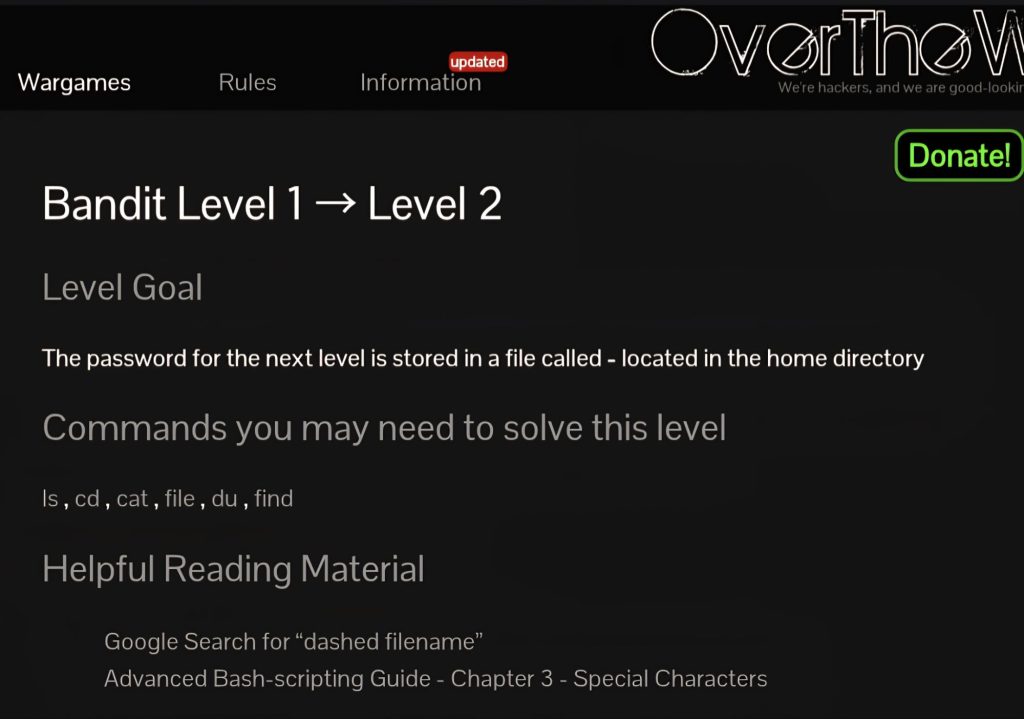
Bandit Level 1 Goal
In Bandit Level 1, the password for the next level is stored in a file called:
-Yes, the filename is literally just a single dash. This looks simple, but it is actually the main challenge. In Linux, a dash can have a special meaning in many commands, so you cannot always treat it like an ordinary filename.
Step 1: Connect to the Server
First, connect to the Bandit server using SSH:
ssh bandit1@bandit.labs.overthewire.org -p 2220Then enter the password you obtained from Bandit Level 0.
Command breakdown:
ssh= Secure Shell, used to connect to a remote systembandit1@bandit.labs.overthewire.org= the username and server address-p 2220= specifies port 2220
SSH is one of the most important Linux tools because it is used constantly in servers, cloud systems, labs, and CTF environments.
Step 2: List the Files
After logging in, check the files in the current directory:
lsYou should see a file named:
-This is where the challenge becomes interesting. The filename itself is just a dash, and that can confuse many Linux commands because the dash is often used as a special symbol rather than a normal file name.

Why the File Is Tricky
Normally, if you want to read a file in Linux, you would use:
cat filenameSo a beginner may try this:
cat -But this does not work as expected. In many Linux programs, - is treated as standard input or standard output. Because of that, the command may wait for keyboard input instead of opening the file named -.
Important lesson: Linux filenames can conflict with command syntax. That is exactly what this level is teaching you.
Step 3: Read the File Correctly
To read the file safely, use this command:
cat ./-This works because ./ means “the current directory.” Instead of passing only a dash, you are passing a path to a file called -.
Why this works:
cat= display file contents./= current directory./-= the file named-located in the current directory
After running this command, the password for Bandit Level 2 will appear on the screen.

Another Useful Method
You can also solve this with:
cat -- -The -- tells the command that everything after it should be treated as a filename, not as an option or special argument. This is a common and professional Linux technique when working with unusual filenames.
So Bandit Level 1 teaches two useful methods:
- Use
./to provide the exact file path - Use
--to stop option parsing
Why This Level Matters
Bandit Level 1 may seem simple, but the lesson is important. Many Linux beginners assume filenames are always easy to use directly in commands. In reality, filenames can contain spaces, symbols, dashes, and other special characters that change how commands behave.
Understanding this helps you avoid mistakes in real systems, shell scripts, and security labs. In cybersecurity and CTF environments, unusual filenames are often used on purpose to test whether you truly understand the Linux command line.
Conclusion
Bandit Level 1 is short, but it teaches an essential Linux concept in a memorable way. The main solution is:
cat ./-Once you understand why this works, you start to understand how Linux treats filenames and command arguments differently. That is a valuable skill for anyone learning Linux, ethical hacking, or cybersecurity.
Do not rush through small levels like this. The tiny details often become the most useful lessons later.